
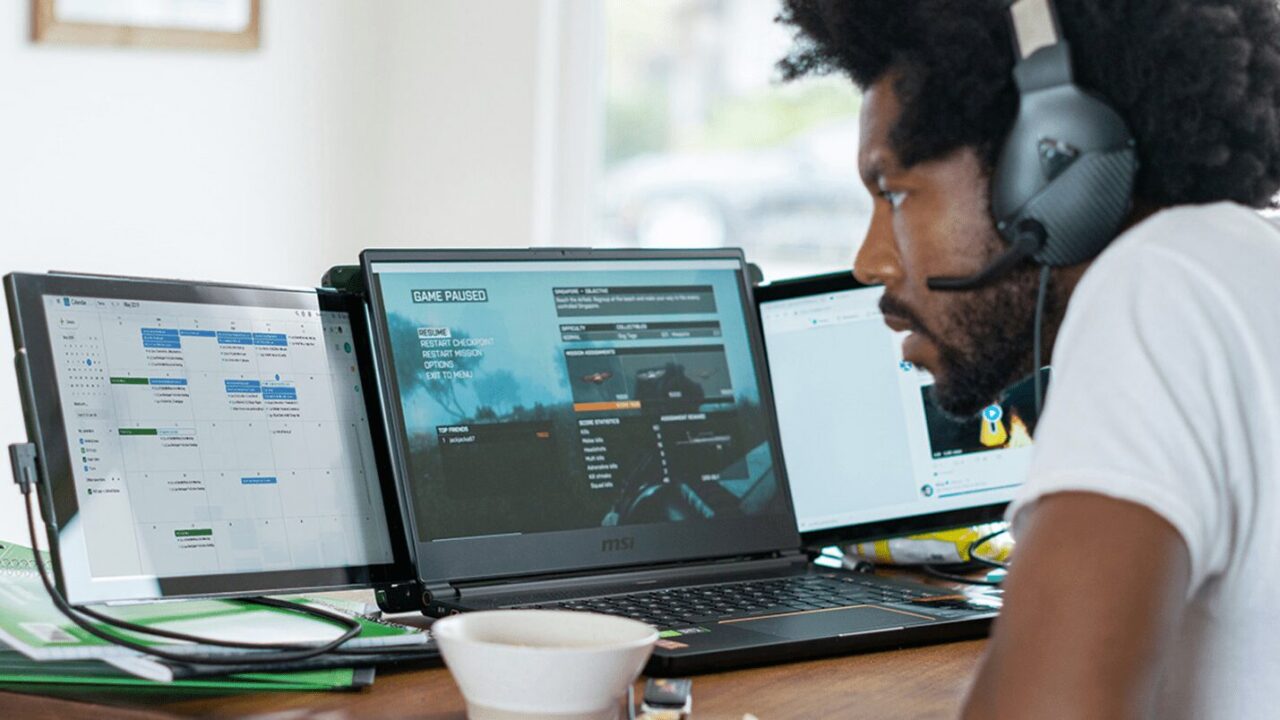
Mastering time blocking can be a game-changer for productivity, but using a laptop screen extender can take this technique to a new level. It is a strategy where you dedicate specific tasks to specific blocks of time, basically creating a detailed schedule for your day, which will feel like turning your to-do list into a calendar. The constant need to switch between the applications and the calendar becomes a tiresome and inefficient procedure on a single screen. Therefore, we recommend using a portable dual-screen arrangement to enhance your productivity and time-blocking skills.

Do you want the laptop screen extender? Get Mobile Pixels Trio laptop screen extender to witness the drastic difference.
The Synergy of Screens and Schedules
A laptop screen extender is usually a lightweight, portable monitor that helps you refine your time blocking skills. Once you attach the screen extender to your laptop’s main display, you can continue working on that while keeping your calendar or time-blocking applications, such as Google Calendar, Fantastical, or a simple spreadsheet, open on the second screen.
This schedule is continuously visible and constantly reminds you of what you have planned for the day, allowing you to stay focused and responsible as well. The screens show you what you should be working on and for how long, without requiring you to click away from your priority project.
How To Set Up Your Productivity Command Center?
First, you require a laptop screen extender that is compatible with your laptop. These devices typically connect through HDMI or USB-C, and your computer directly powers them. Once connected, your operating system should automatically detect that you have set a second display as well. After that, you can go into your display settings and configure it to “Extend” your desktop, instead of “Duplicating” it. Don’t miss this step, as it allows you to drag windows from one screen to another.
Now, open your desired time-blocking application and drag its window to the extended screen. Maximize the application to fill the entire display. This will serve as your control panel, providing a visual roadmap for the day. Open the applications you require for your tasks on the primary screen, whether it’s a coding software, a word processor, or your client’s email.

A Quick Walk-Through
Let’s give you a quick walk-through of what it’s going to look like:
9:00 AM – 10:00 AM
Project X Report
You have a project’s report open on your main screen. On the second screen, your calendar indicates that you have to work on the report from 9:00 to 10:00 AM. This visual flashing discourages you from wasting time on checking emails and social media.
10:00 AM – 10:30 AM
Respond to Emails
As the clock hits 10, the next block on your screen says “Respond to Emails.” You close the previous task and open your emails on your main screen because you have strictly given yourself thirty minutes to respond to emails. The time limit prevents you from getting lost in your inbox for hours.
10:30 AM – 11:00 AM
Team Meeting
After half an hour, your calendar reminds you to start the team meeting. You close your email and immediately open your video conference application. Therefore, this constant visibility helps in managing your time while completing the tasks and avoiding distractions.
Conclusion
We hope you understand how to use your laptop screen extender to divide tasks into different time slots, so you don’t miss out on anything. To get the best version, head to Mobile Pixels.



No Comments